
6
/16
Please answer the questions on the right-hand side and select the regulations applicable to your product.
Next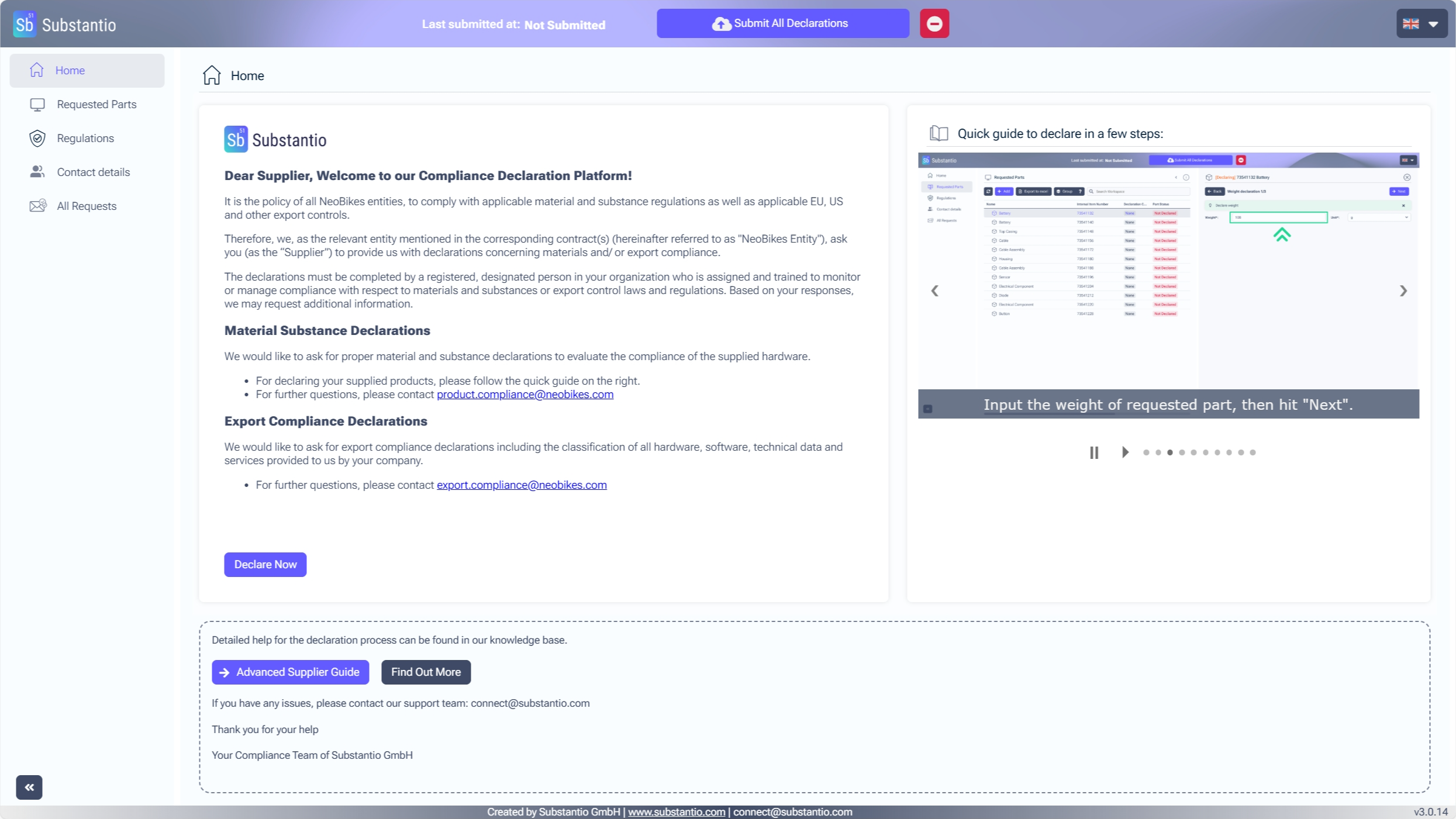
You can access the Supplier Declaration Platform via the link provided in the email you received from your customer. Please click the Declare now button to begin the declaration process.
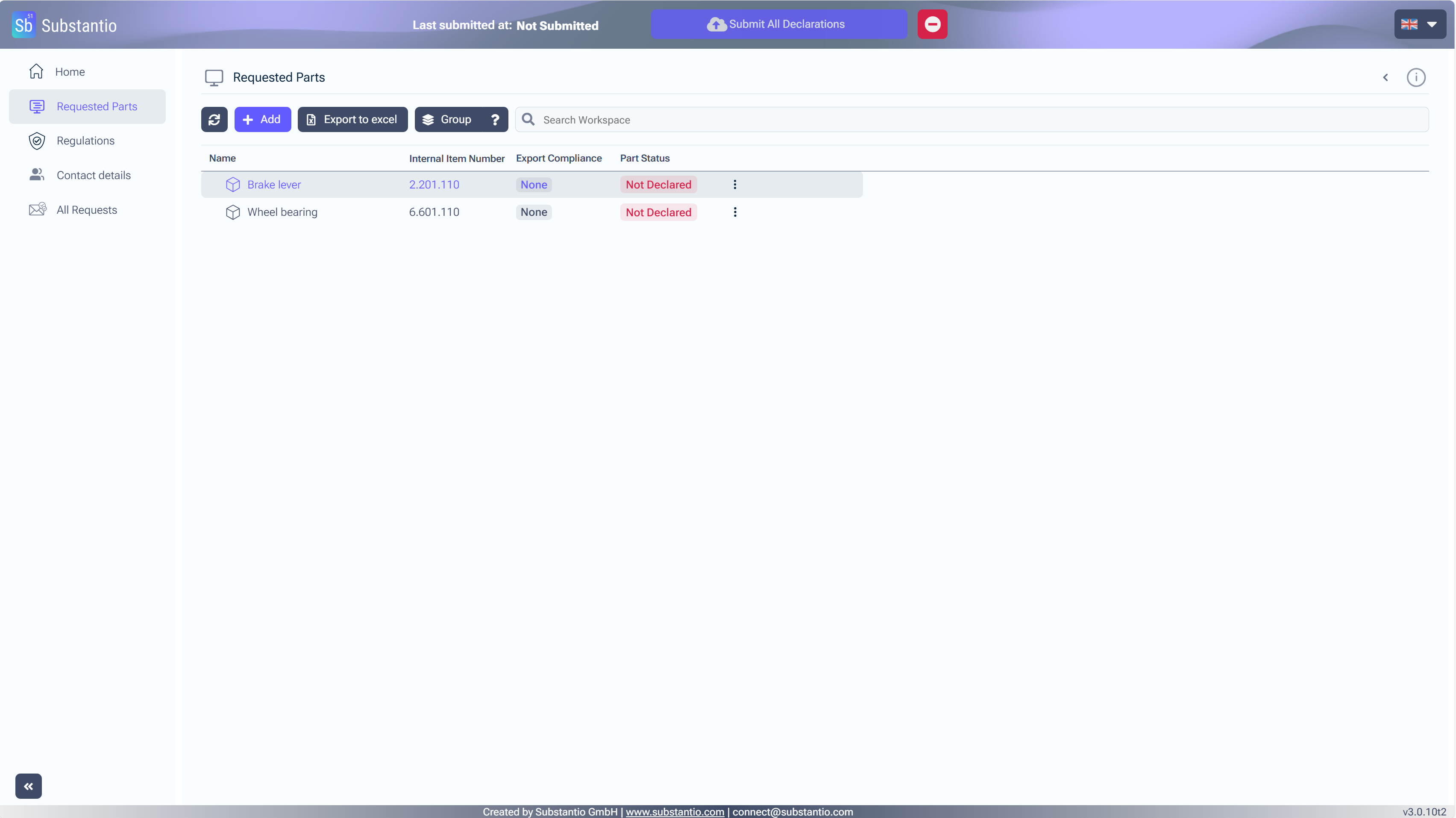
To review a requested part, select its name to open a details panel on the right side of the screen.
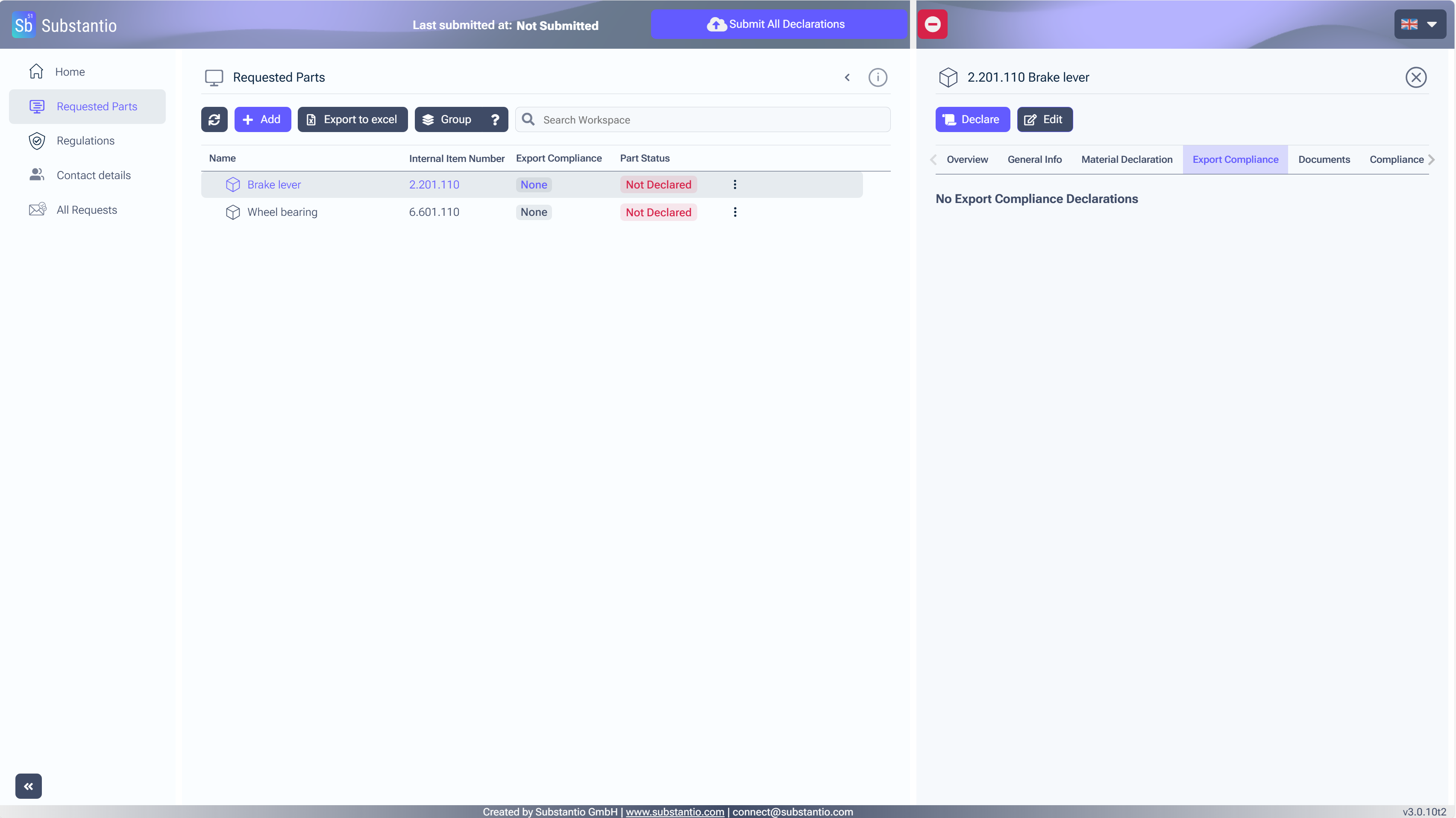
Please click on the Export Compliance tab to update the compliance information.
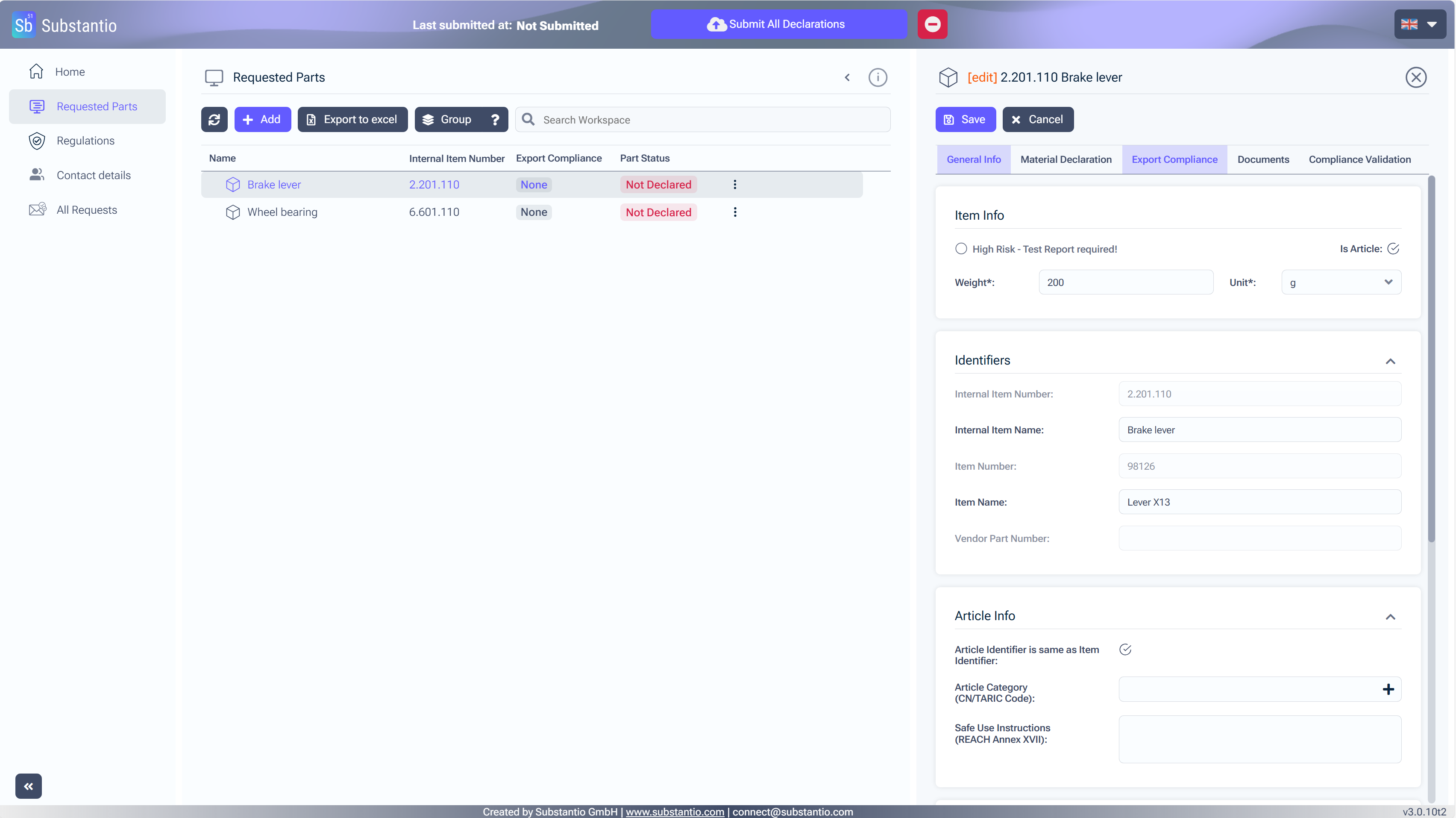
To start entering your data for the selected part, click the Edit button.
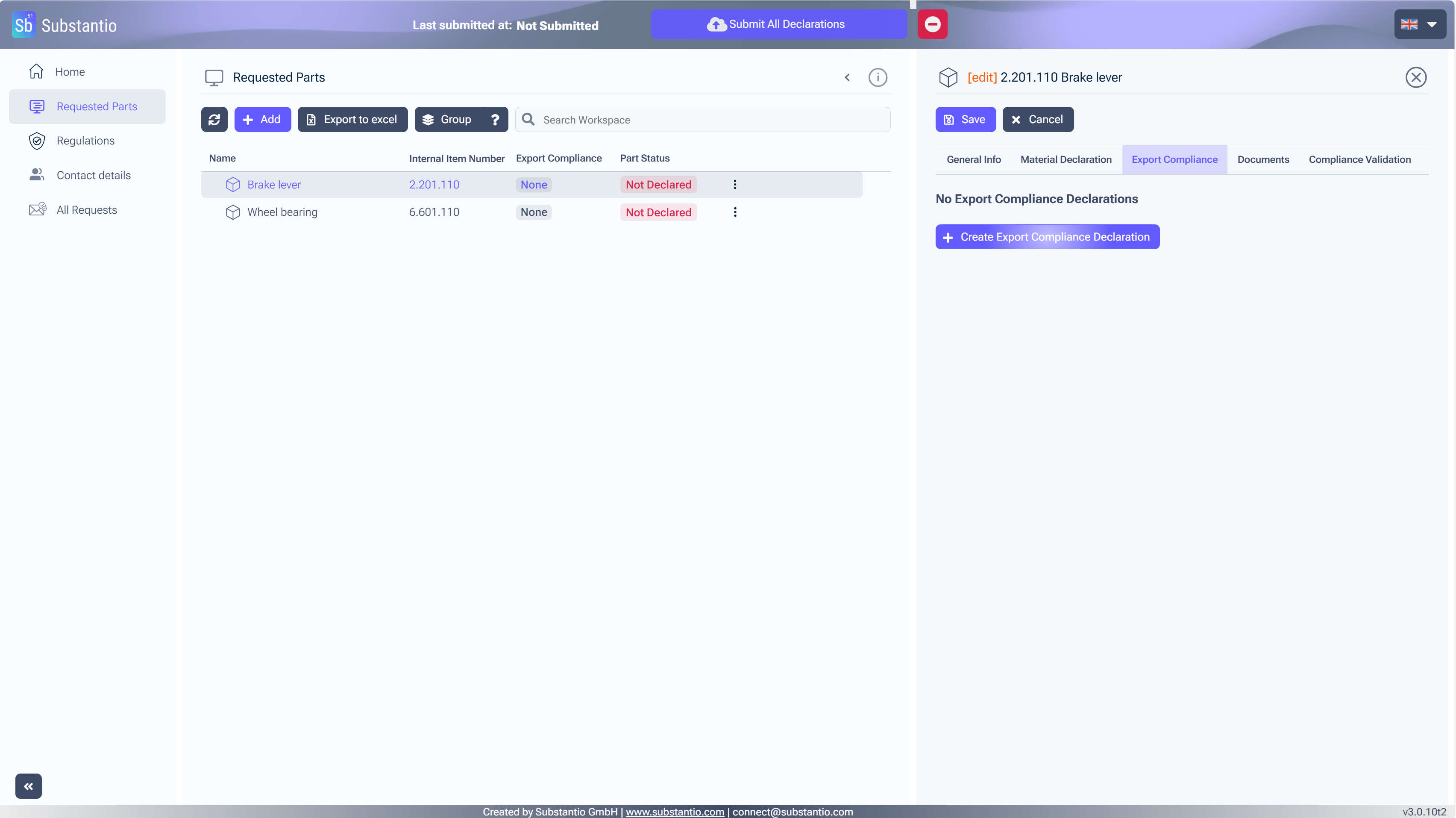
Please start by clicking the Create Export Compliance Declaration button.
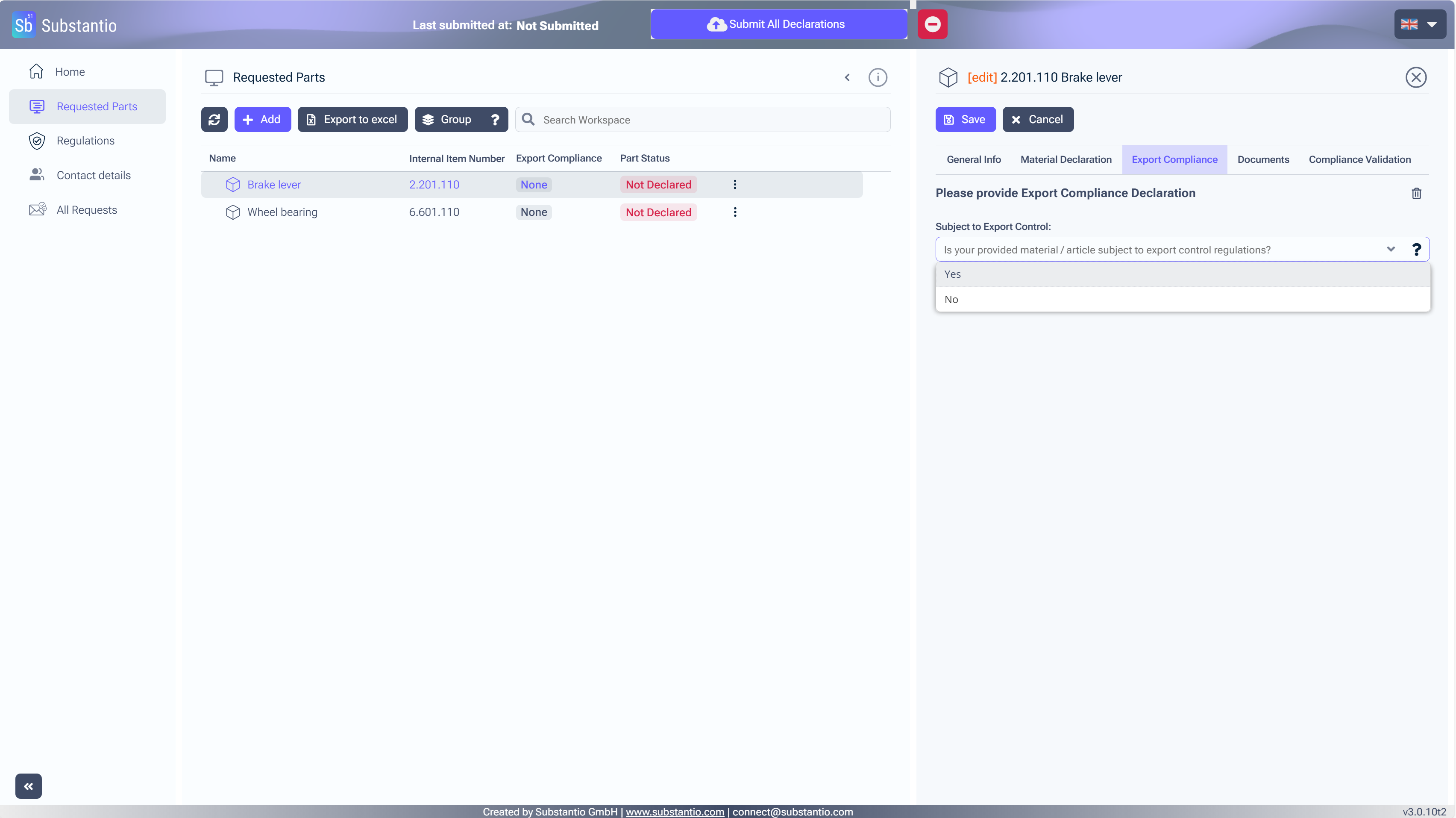
Please answer the questions on the right-hand side and select the regulations applicable to your product.
Next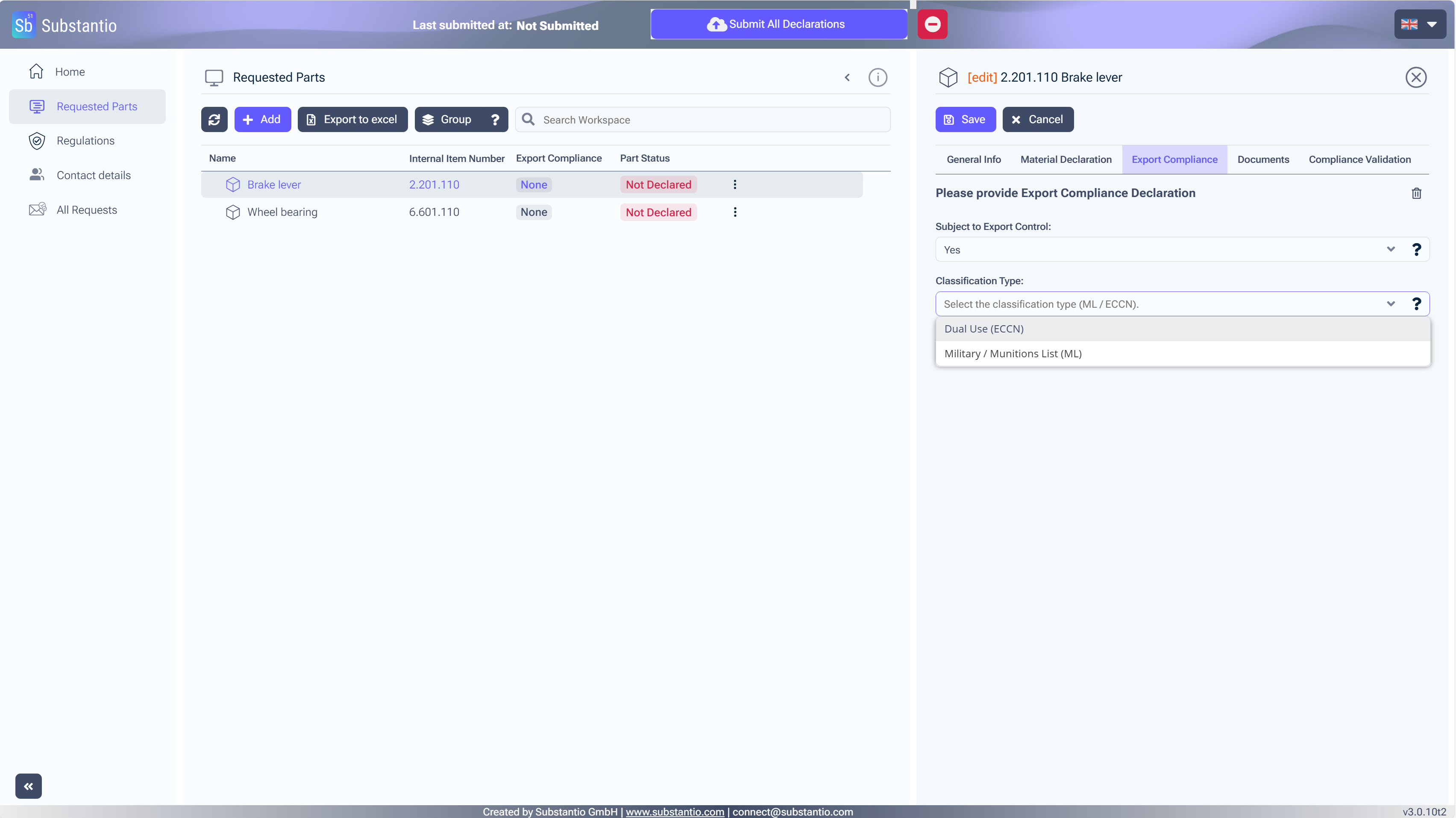
Please answer the questions on the right-hand side and select the regulations applicable to your product.
Next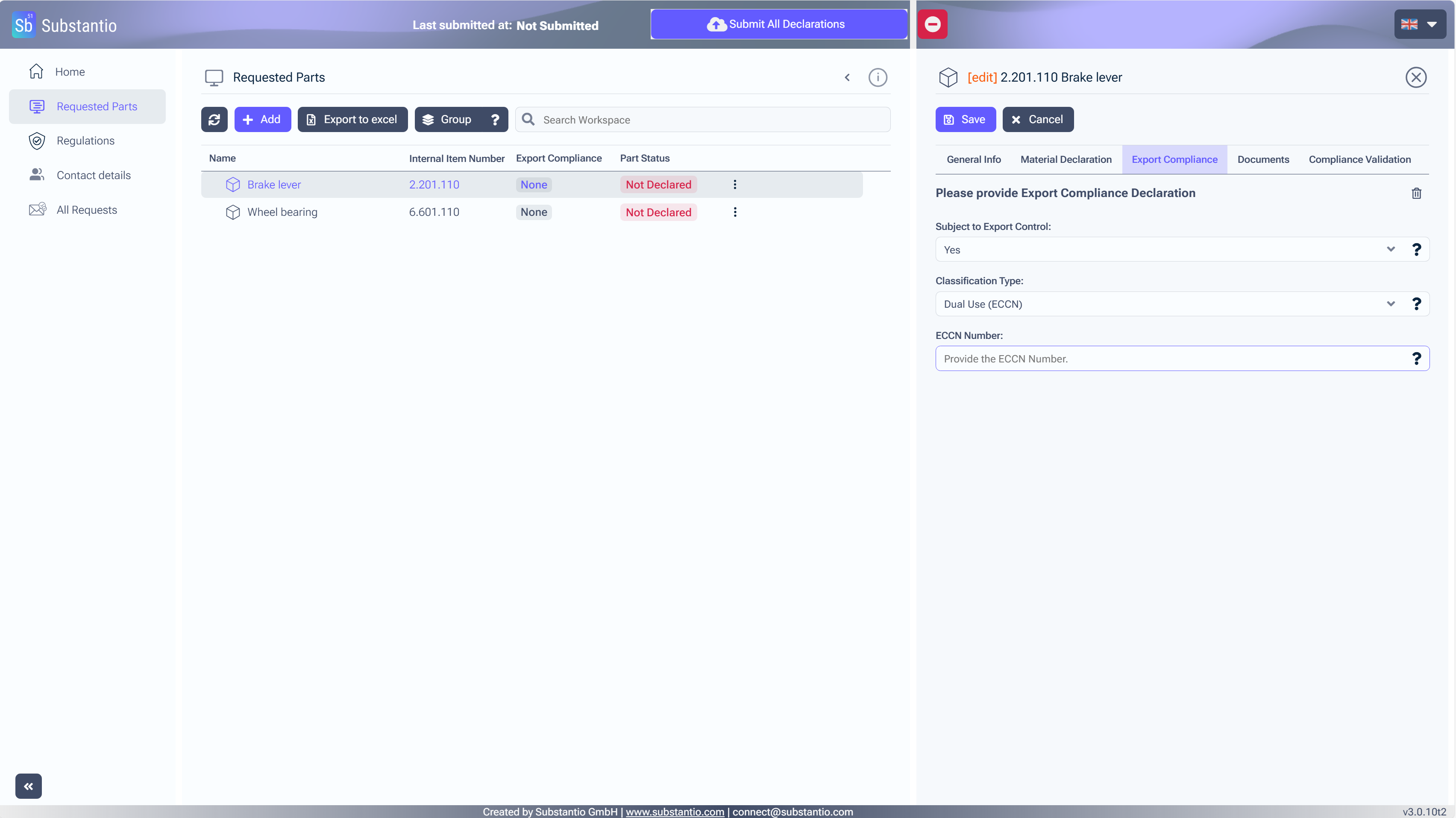
If you selected Dual Use, please enter the corresponding ECCN number. You can find this information in the Commerce Control List (CCL).
Next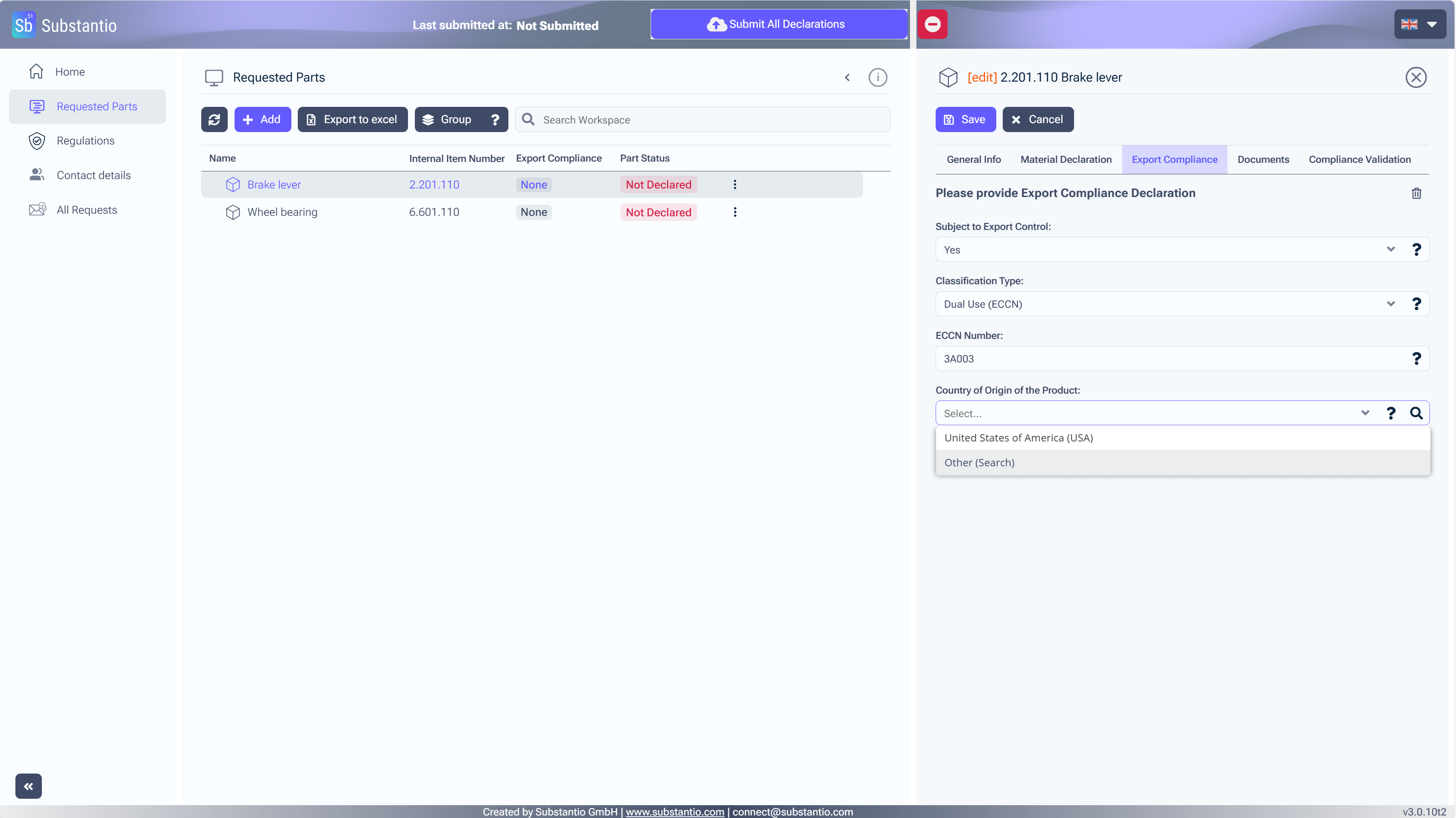
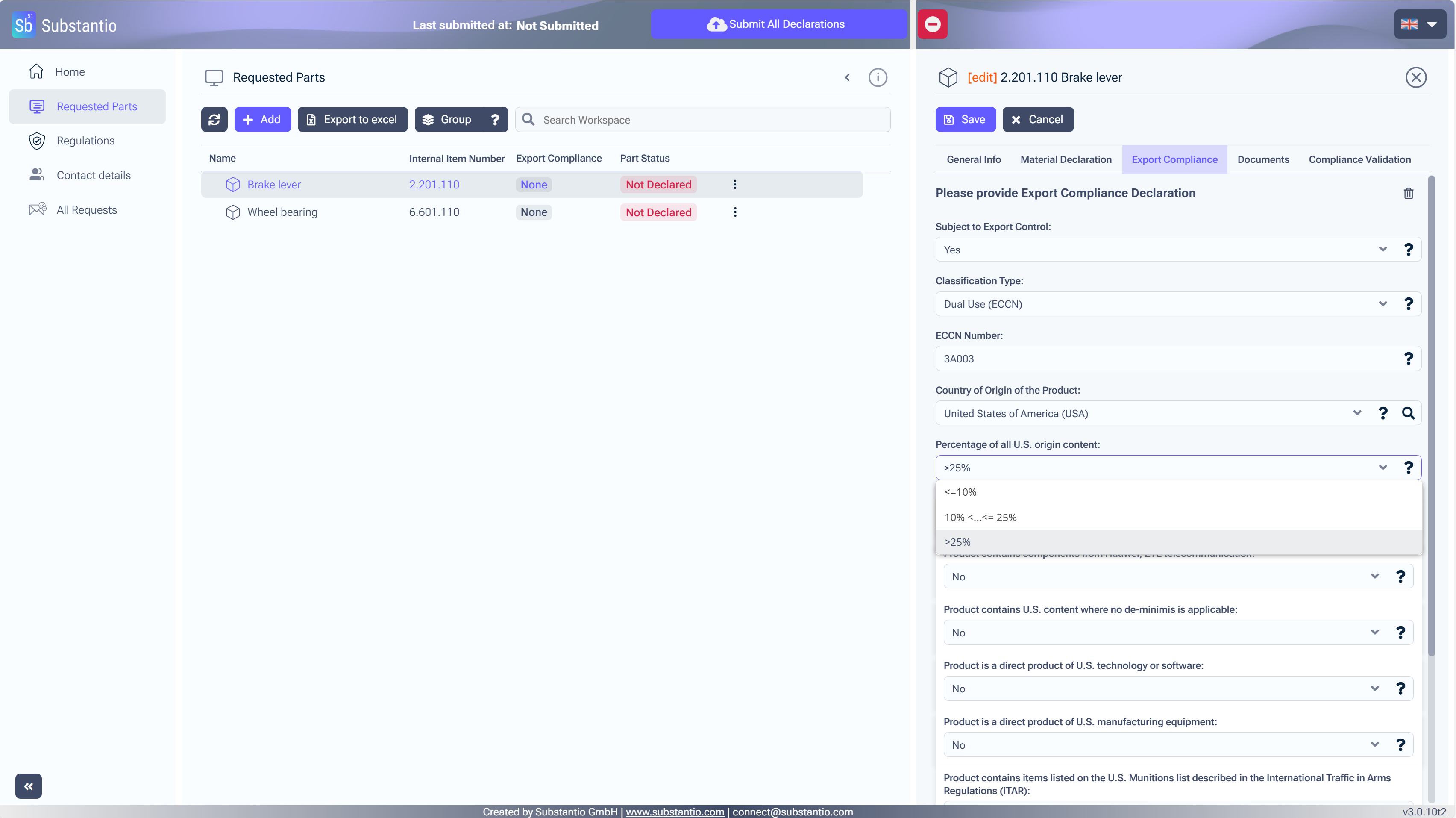
Please indicate the proportion of the product from that country. And answer the questions below.
Next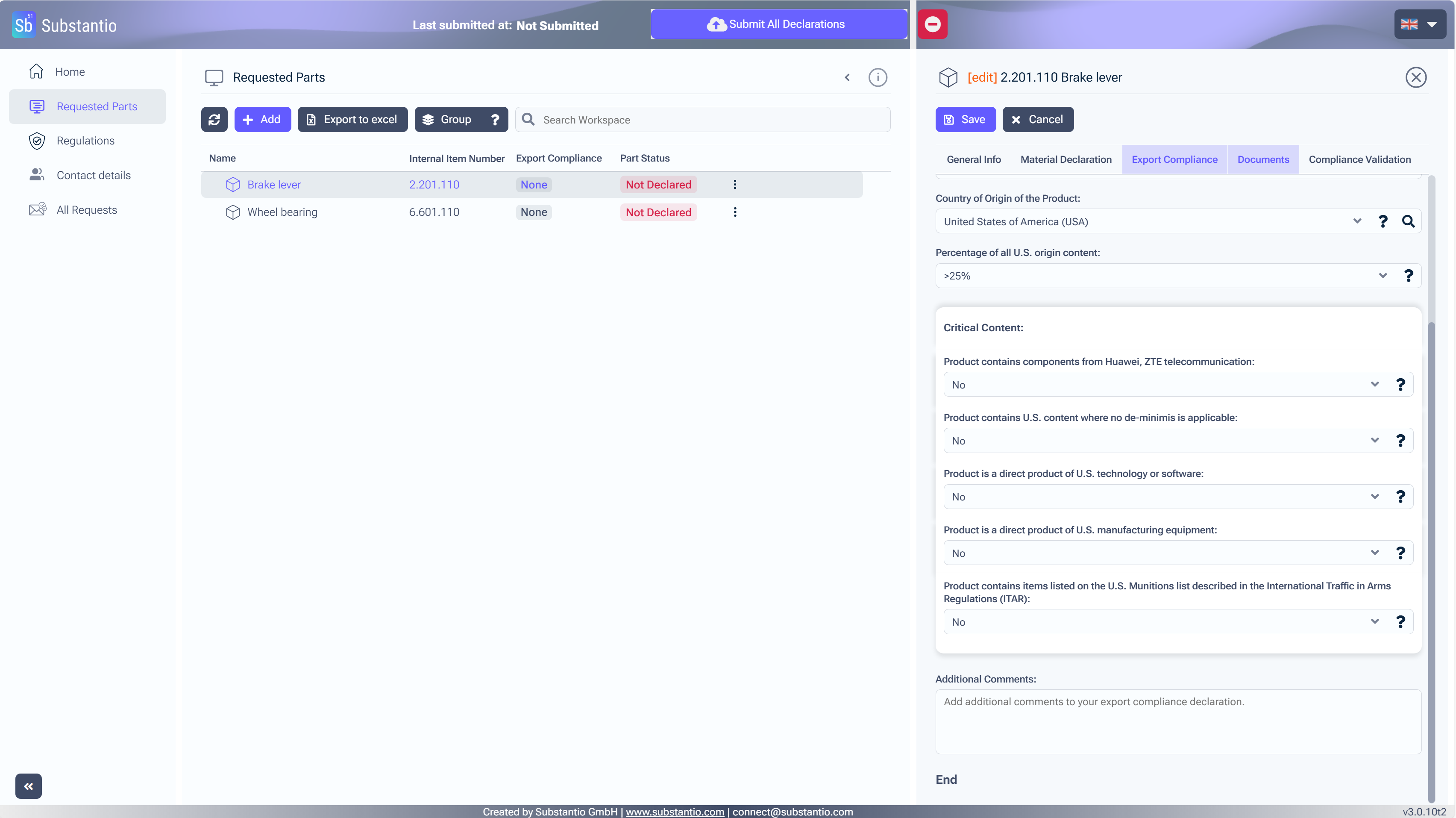
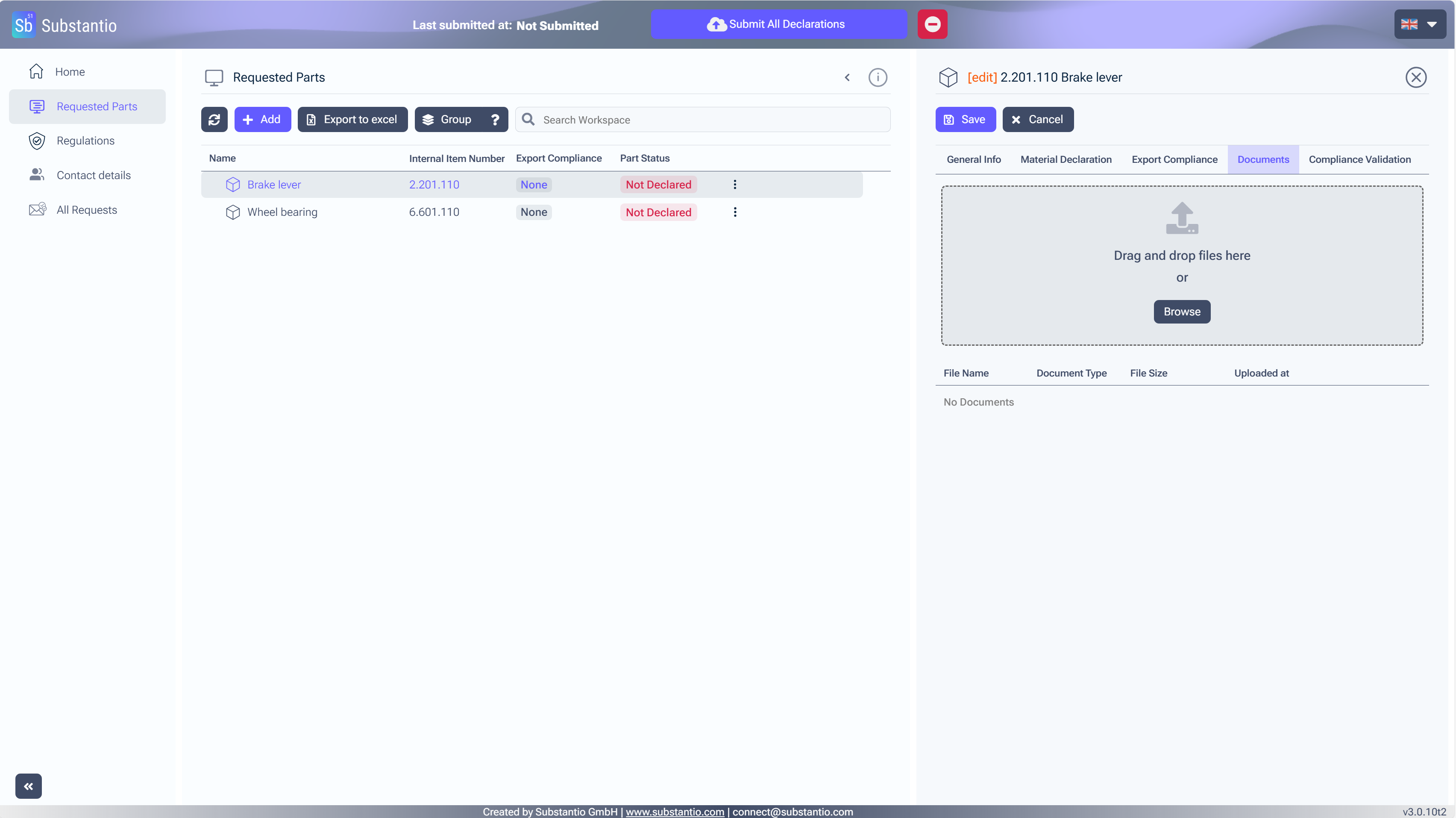
Click at the Browse button, so you can upload any required document.
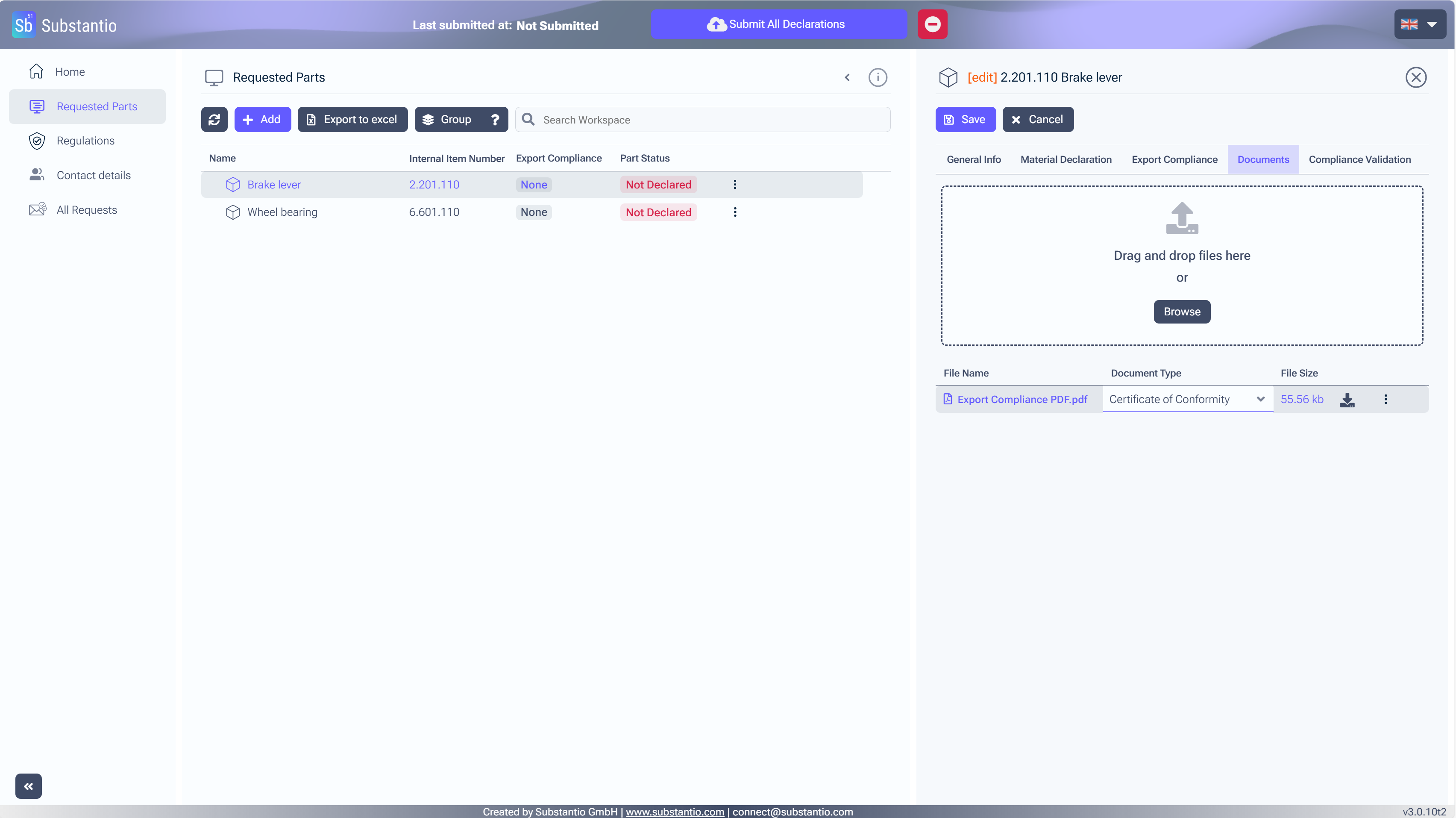
Please determine your document type.
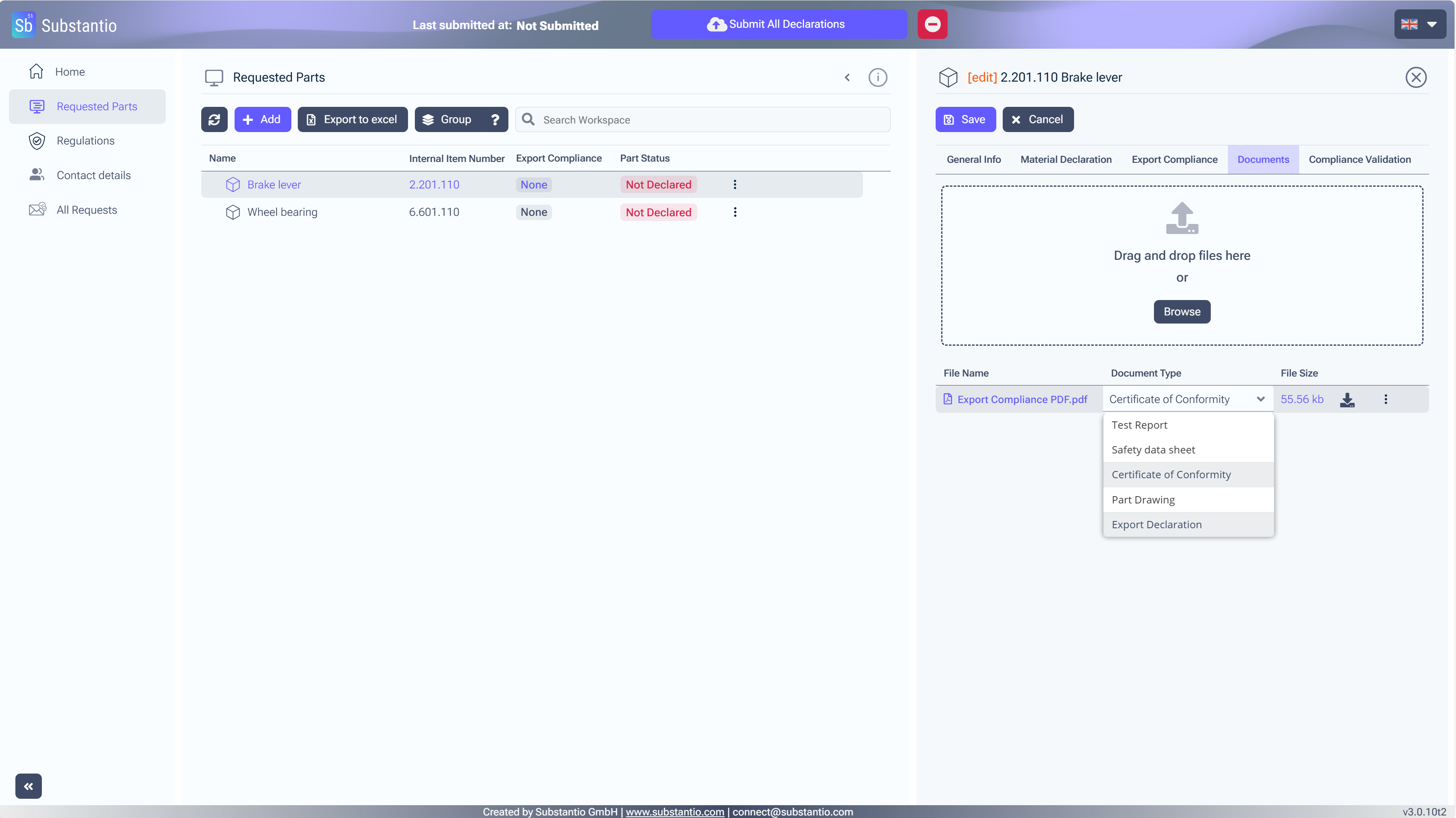
Choose Export Declaration.
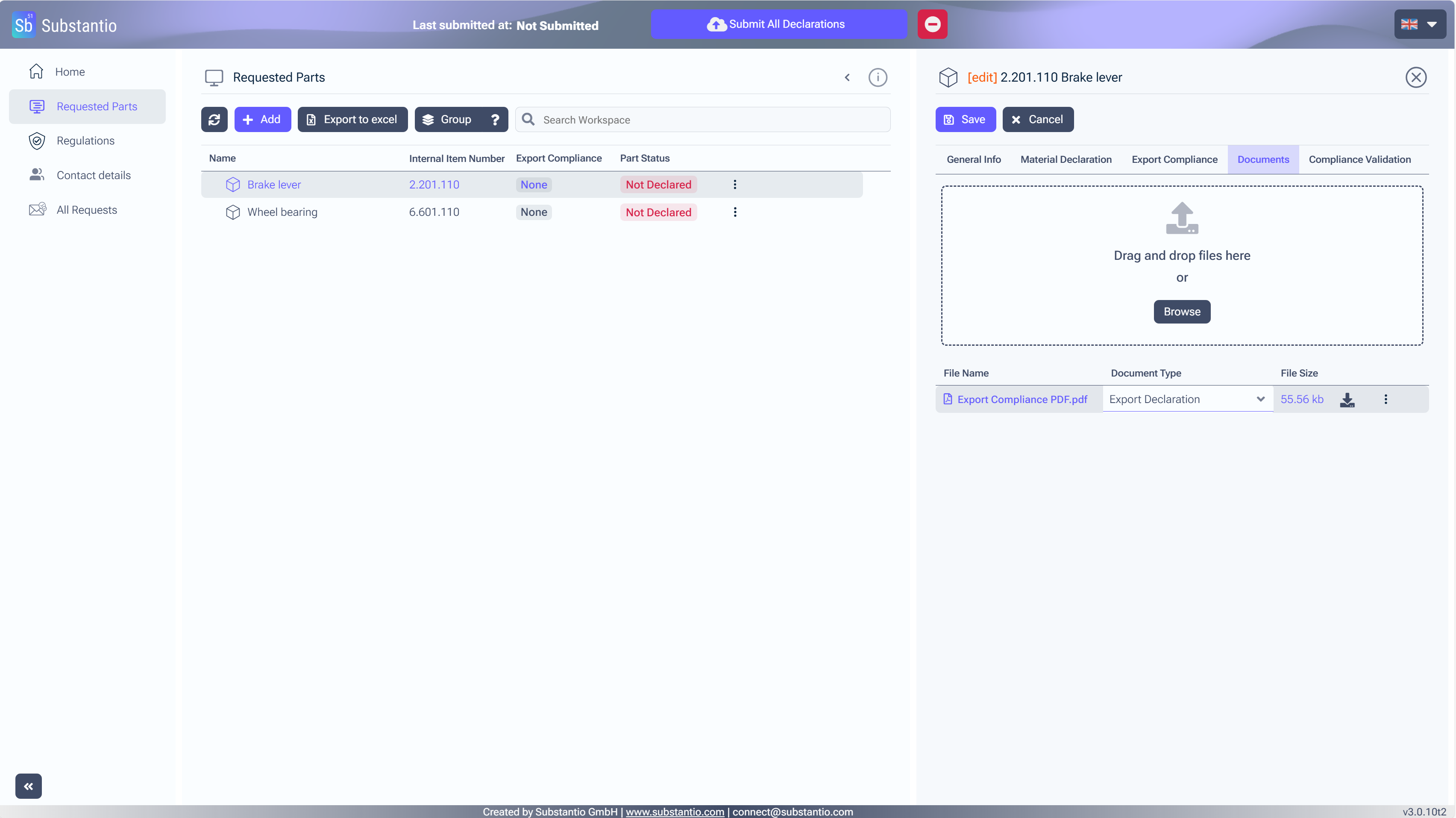
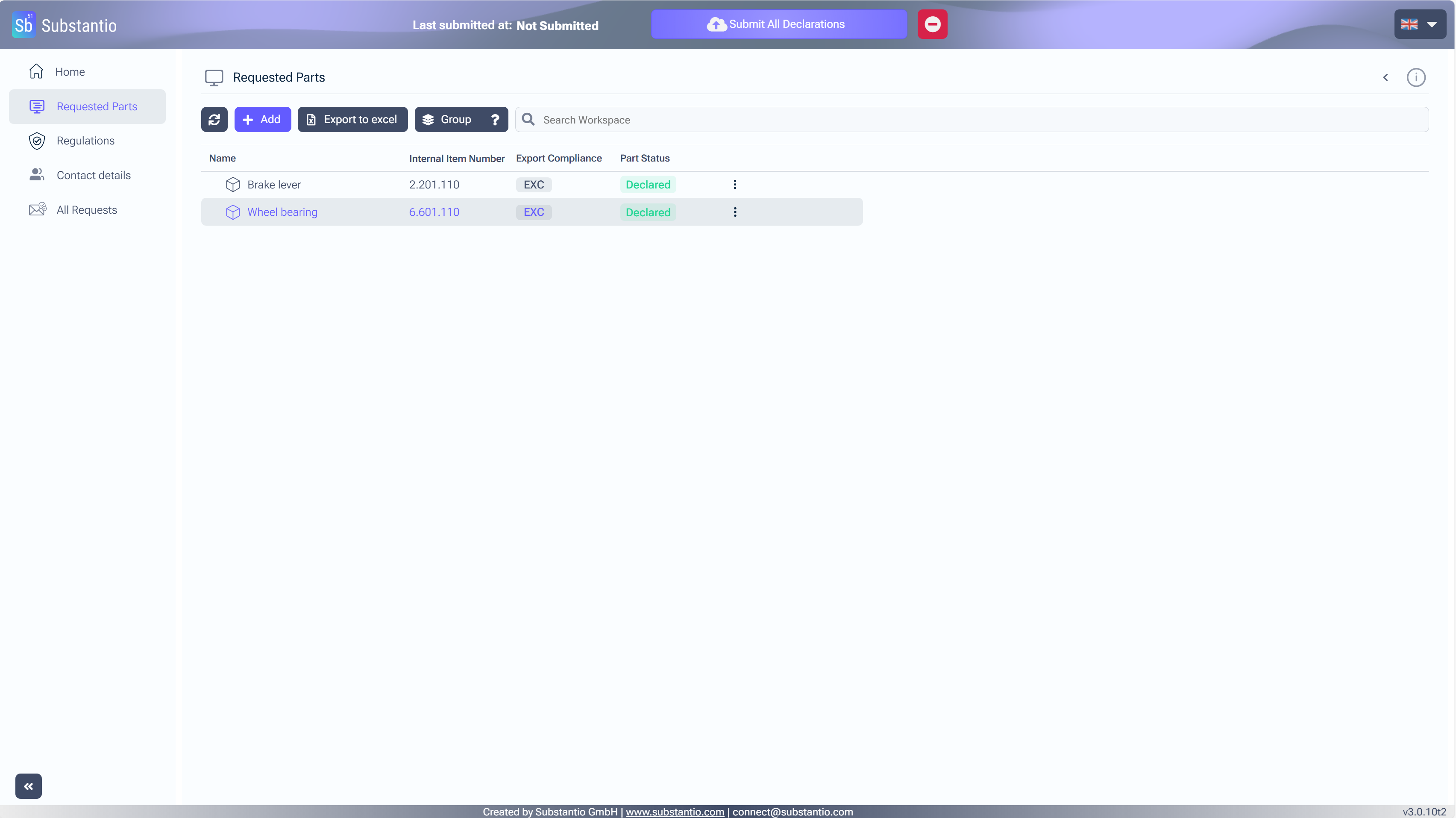
Once all parts have been declared, click the Submit All Declarations button to send your information to the customer. Make sure all parts are declared before submitting.

